.svg)
.webp?width=300&name=tinywow_pexels-silverkblack-30535785_87091109%20(1).webp)
Creating an invoice in SAP is a critical step in ensuring vendors are paid accurately and on time. Whether you’re in procurement, accounts payable, or finance, understanding how SAP invoice processing works helps reduce errors, avoid payment delays, and maintain strong supplier relationships.
This guide walks through how to create an invoice in SAP, the most common methods, and best practices and tools to keep your process running smoothly.
What Is an Invoice in SAP?
In SAP, an invoice records a vendor’s request for payment and links it to the appropriate purchase order (PO), goods receipt, or service entry sheet. Once posted, the invoice becomes part of the accounts payable process and is scheduled for payment according to agreed payment terms.
Invoices can be created with reference to:
- A Purchase Order
- A Goods Receipt
- A Service Entry Sheet
- Or without a PO (non-PO invoice)
What Is the T-Code for Invoice Creation in SAP?
The primary transaction code (T-code) used to create vendor invoices in SAP is MIRO.
MIRO is part of the Materials Management (MM) module and is used to post invoices with reference to a purchase order, goods receipt, or service entry sheet. It supports three-way matching, automatically pulls PO details, and performs validation checks to ensure pricing, quantities, and taxes are accurate before posting.
While MIRO is the most commonly used T-code for PO-based invoices, other invoice-related T-codes may be used in specific scenarios, such as:
- FB60 – For non-PO vendor invoices posted directly to G/L accounts
- FV60 – For parked (not yet posted) vendor invoices
- MR8M – To cancel a posted invoice
For most procure-to-pay processes, MIRO remains the standard and recommended T-code for invoice creation in SAP, especially when accuracy, compliance, and auditability are critical.
Common Ways to Create an Invoice in SAP
The most common method for creating vendor invoices in SAP is using transaction MIRO.
Step-by-Step: How to Create an Invoice in SAP Using MIRO
1. Open Transaction MIRO
In the SAP command field, enter MIRO and press Enter. This opens the invoice entry screen.
2. Select the Transaction Type
Ensure Invoice is selected (not Credit Memo or Subsequent Debit/Credit).
3. Enter the Invoice Header Details
Fill in the following fields:
- Invoice Date – Date shown on the vendor invoice
- Posting Date – Date the invoice is posted in SAP
- Reference – Vendor invoice number
- Amount – Total invoice amount
- Currency – Must match the PO currency
4. Reference the Purchase Order
Enter the PO number in the reference field. SAP will automatically pull in PO line items, quantities, and pricing.
5. Verify Line Items
Carefully review:
- Quantities invoiced
- Unit prices
- Tax amounts
- Delivery costs (if applicable)
SAP will perform a three-way match between the PO, goods receipt/service entry, and the invoice.
6. Resolve Any Variances
If there are mismatches (price or quantity differences), SAP will display warnings or errors. You may need to:
- Adjust quantities
- Post price differences
- Hold the invoice for review
7. Simulate the Invoice
Click Simulate to review accounting entries before posting. This helps catch errors early.
8. Post the Invoice
Once validated, click Post. SAP generates an accounting document number confirming the invoice has been successfully created.
Now imagine not having to do all of this by hand.
How Rio Automates Invoice Creation Inside SAP
While SAP’s MIRO transaction provides a reliable way to manually post invoices, many organizations turn to Rio to automate this process end-to-end, directly inside SAP. Rio automatically captures invoices from multiple sources, including EDI, OCR, email, and supplier portals, eliminating manual data entry. It intelligently matches invoices to purchase orders and goods receipts or service entry sheets, applying business rules to validate accuracy. Instead of forcing users to search for errors, Rio proactively flags exceptions and routes them for resolution. Once validated, invoices are posted directly in SAP with full audit traceability, helping teams reduce cycle times, improve compliance, and scale invoice processing without adding manual effort.
Best Practices for Invoice Creation in SAP
- Always reference the correct PO or service entry sheet
- Enter invoices promptly to avoid late payments
- Double-check quantities, pricing, and tax amounts
- Use clear references for audit and traceability
- Avoid posting invoices with unresolved variances
Common Invoice Errors to Avoid
- Posting an invoice before goods or services are received
- Duplicate invoice numbers
- Incorrect tax codes
- Mismatched currency or unit pricing
- Skipping simulation before posting
Getting Invoice Creation Right in SAP
Knowing how to create an invoice in SAP is essential for maintaining accurate financial records and efficient procure-to-pay operations. By following a structured process and validating details before posting, teams can reduce rework, improve compliance, and ensure vendors are paid on time.
For organizations handling high invoice volumes or struggling with manual checks, solutions like Rio extend SAP’s native capabilities by automating invoice capture, validation, and posting directly inside SAP, dramatically improving speed, accuracy, and audit readiness without disrupting existing processes.
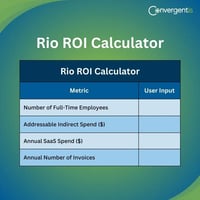
Could you benefit from a tool like Rio for invoice processing? Fill out the Rio ROI calculator below to find out.